
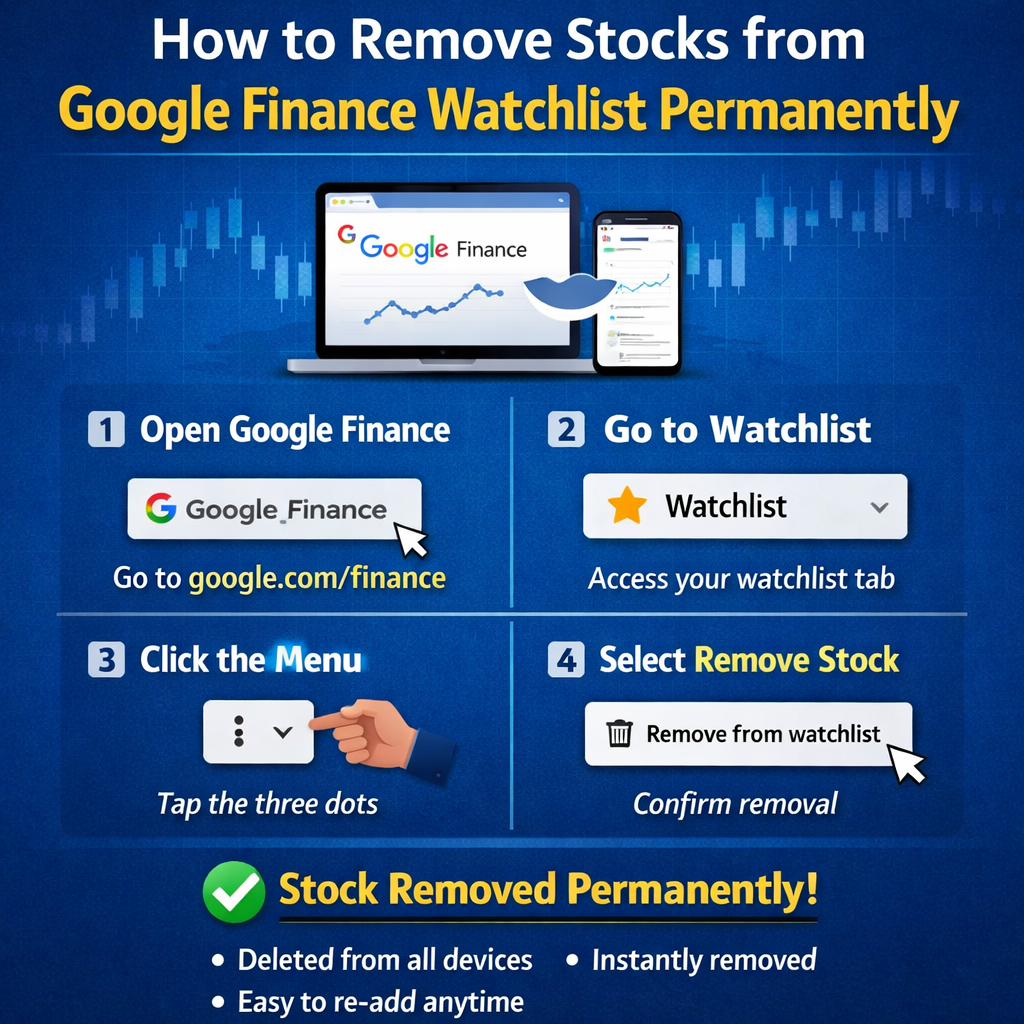

How to Remove Stocks from Google Finance Watchlist Permanently.
How to Remove Stocks from Google Finance Watchlist Permanently?
If you’ve ever tracked stocks using Google Finance, you probably know how useful the watchlist feature is. But what happens when your watchlist becomes cluttered with outdated stocks, experimental picks, or companies you no longer follow?
You start searching for: how to remove stocks from Google Finance watchlist permanently?
Whether you’re a beginner investor cleaning up your portfolio tracker or a professional managing multiple watchlists, this comprehensive guide will walk you through everything — from basic removal steps to advanced troubleshooting and data management strategies.
Let’s break it down clearly and practically.
Table of Contents
-
What Is Google Finance Watchlist?
-
Why Remove Stocks from Your Watchlist?
-
How to Remove Stocks from Google Finance Watchlist Permanently (Step-by-Step)
-
Removing Stocks on Desktop vs Mobile
-
What Happens After You Remove a Stock?
-
Common Issues & Troubleshooting
-
How to Organize Your Watchlist Like a Pro
-
Alternatives to Google Finance Watchlist
-
Security & Data Privacy Considerations
-
FAQs (Schema-Ready Answers)
-
Conclusion & Action Steps
What Is Google Finance Watchlist?
The Google Finance watchlist is a personalized tracking feature inside Google Finance that allows users to:
-
Monitor stock prices in real time
-
Track ETFs, mutual funds, indices
-
Follow market news
-
View performance charts
-
Compare multiple securities
It is integrated with your Google account, meaning your watchlist syncs across devices when you’re logged in.
For casual users, it’s a simple stock tracker. For professionals, it’s a quick market overview tool.
Why Remove Stocks from Google Finance Watchlist?
Before we dive into how to remove stocks from Google Finance watchlist permanently, let’s understand why it matters.
1. Cleaner Interface
Too many stocks = information overload.
A clean watchlist improves focus and decision-making.
2. Better Portfolio Clarity
If you’re tracking 50 stocks but actively invest in only 8, you dilute your attention.
3. Performance Tracking Accuracy
Removing irrelevant stocks ensures your market snapshot reflects current interests.
4. Avoid Emotional Investing
Sometimes we track “regret stocks” — companies we missed buying. Removing them can reduce unnecessary bias.
How to Remove Stocks from Google Finance Watchlist Permanently (Step-by-Step)
This section directly answers the core search intent.
Method 1: Remove Stock via Desktop (Web Browser)
Step 1: Open Google Finance
Go to:
Ensure you’re logged into your Google account.
Step 2: Access Your Watchlist
Click on “Watchlist” from the left sidebar or top navigation menu.
Step 3: Locate the Stock
Scroll or search for the stock you want to remove.
Step 4: Click the “Remove” Option
Hover over the stock entry.
Click the three-dot menu (⋮) next to it.
Select:
“Remove from watchlist”
Step 5: Confirm Removal
The stock will immediately disappear from your list.
✔️ Done.
It is permanently removed unless you manually add it again.
Method 2: Remove Stock on Mobile (Android / iPhone)
Option A: Using Mobile Browser
-
Open your mobile browser
-
Go to Google Finance
-
Log into your account
-
Tap Watchlist
-
Tap the stock
-
Tap the three dots
-
Select “Remove from watchlist”
Option B: Through Google App
If accessing through the Google app:
-
Search for the stock
-
Tap the bookmark/star icon
-
Toggle it off
Featured Snippet Section
How to Remove Stocks from Google Finance Watchlist Permanently?
To remove a stock permanently from Google Finance watchlist:
-
Open Google Finance
-
Go to Watchlist
-
Click the three-dot menu next to the stock
-
Select “Remove from watchlist”
-
The stock will be deleted immediately and synced across devices
Is It Really Permanent?
Yes — but with clarification.
When you remove a stock from your watchlist:
-
It is deleted from your Google account’s saved list
-
It disappears from all synced devices
-
It does NOT delete trading history (Google Finance does not store trades)
-
You can re-add it anytime manually
Google Finance does not keep “archived watchlist entries.”
Common Issues When Removing Stocks
1. Stock Reappears After Removal
Possible reasons:
-
Logged into multiple Google accounts
-
Browser sync delay
-
Cache issue
Fix:
-
Log out and log back in
-
Clear browser cache
-
Refresh page
-
Ensure correct Google account
2. No “Remove” Option Visible
This happens if:
-
You’re viewing a stock page, not your watchlist
-
The stock is part of a default market list
Solution:
Navigate directly to your watchlist tab, not market overview.
3. Sync Issues Across Devices
Because Google Finance syncs via your Google account:
-
Check you’re logged into same account
-
Disable and re-enable sync
-
Refresh mobile app
Advanced Watchlist Management Tips
Now that you know how to remove stocks from Google Finance watchlist permanently, let’s optimize your watchlist strategically.
Use Categories
Instead of adding everything to one list, consider:
-
Long-term investments
-
Swing trades
-
Dividend stocks
-
Research stocks
-
Sector tracking
Although Google Finance does not allow multiple custom lists like some platforms, you can manually maintain discipline.
Comparison: Google Finance vs Other Platforms
| Feature | Google Finance | Yahoo Finance | TradingView |
|---|---|---|---|
| Watchlist | Yes | Yes | Yes |
| Multiple Lists | Limited | Yes | Yes |
| Portfolio Tracking | Basic | Advanced | Advanced |
| Real-Time Data | Yes | Yes | Yes |
| Chart Tools | Basic | Moderate | Advanced |
Alternatives include:
-
Yahoo Finance
-
TradingView
If you need multi-layered portfolio tracking, you might outgrow Google Finance.
Benefits of Removing Unwanted Stocks
-
Faster loading watchlist
-
Reduced cognitive load
-
Better stock tracking efficiency
-
Improved focus on active investments
-
Cleaner financial workflow
Professionals often keep watchlists under 20 stocks for optimal tracking.
Risks of Over-Cleaning
Yes, there are subtle risks.
-
You might remove a stock you’re researching
-
You lose quick comparison ability
-
You might forget long-term potential picks
Pro Tip:
Before removing, consider keeping a spreadsheet backup.
Real-World Example
Imagine you added:
-
30 tech stocks during a market rally
-
15 biotech stocks during pandemic research
-
10 meme stocks for speculation
Now you actively track only 8 core investments.
Removing irrelevant stocks:
-
Reduces noise
-
Improves focus
-
Speeds up decision-making
-
Makes price alerts more meaningful
Professional traders clean watchlists quarterly.
Data & Statistics
According to behavioral finance research:
-
Investors tracking fewer stocks make faster decisions
-
Over-monitoring increases emotional trading
-
Simpler dashboards reduce cognitive fatigue
While Google Finance is not a brokerage platform, the psychology still applies.
FAQs (People Also Ask Style – Schema Ready)
Q1: How do I permanently delete stocks from Google Finance watchlist?
To permanently delete stocks from Google Finance watchlist, go to your Watchlist section, click the three-dot menu next to the stock, and select “Remove from watchlist.” The removal syncs across all devices.
Q2: Why does a stock keep coming back to my Google Finance watchlist?
This usually happens due to account sync issues or being logged into multiple Google accounts. Ensure you remove the stock from the correct account.
Q3: Can I recover a removed stock from Google Finance watchlist?
No. Once removed, it is deleted. However, you can manually search for the stock and re-add it anytime.
Q4: Does removing a stock delete transaction history?
No. Google Finance does not store brokerage transaction history. Removing a stock only affects your watchlist display.
Q5: Can I create multiple watchlists in Google Finance?
Currently, Google Finance offers limited customization compared to other platforms. It does not support multiple advanced categorized watchlists like TradingView.
Expert Insight: When Should You Clean Your Watchlist?
As a rule of thumb:
✔ Quarterly review
✔ After major market cycles
✔ After portfolio rebalancing
✔ When exceeding 25 stocks
Professionals treat watchlists like inventory — if it’s not useful, remove it.